Add Members to the Subspace
After creating a subspace, EKOS allows you to immediately add members.
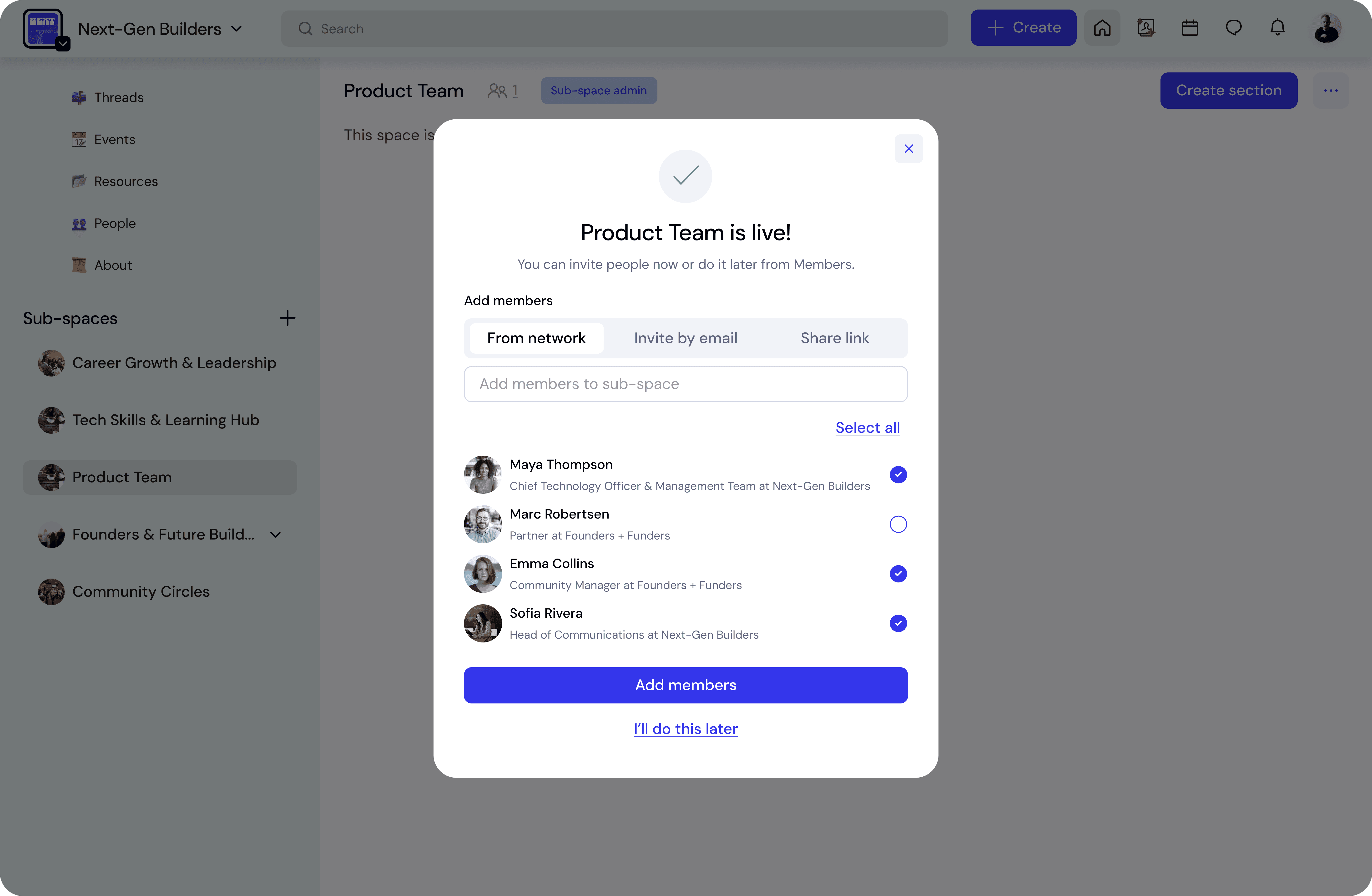
Once the subspace is created, a confirmation window will appear showing that the subspace is live.
From this window, you can invite members to join the subspace.
Add Members During Creation
In the Add members section:
Use the Search connections field to find members in your space.
Select one or more members from the list.
Click Add members to include them in the subspace.
Selected members will immediately gain access to the subspace.
Skip and Add Members Later
Adding members at this step is optional.
If you prefer to do it later, click:
“I’ll do this later”
You can always add members afterwards from the Members section or through subspace management settings.
When to Add Members Immediately
Adding members right away is helpful when the subspace is created for:
a working group
a project team
a private collaboration space
a leadership or moderator group
This ensures the right people can start participating immediately.
💡 Tip
If the subspace is Open, members in the space may be able to join it themselves.
If it is Private or Secret, members will need to be invited manually.