Event Recording
Overview
EKOS allows hosts to record virtual events and meetings so they can be replayed later.
Recording helps you:
share the event with members who couldn’t attend
create on-demand event content
archive important discussions
reuse sessions as resources for your community
Recordings can be watched and downloaded after the event ends.
Starting a Recording
During a virtual event, hosts can start recording from the meeting interface.
To start recording
Open your virtual event.
Click the REC (Record) button in the meeting controls.
A confirmation window will appear.
Click Yes, start recording to begin recording.
Once recording begins:
participants are notified
the event interface displays a REC indicator
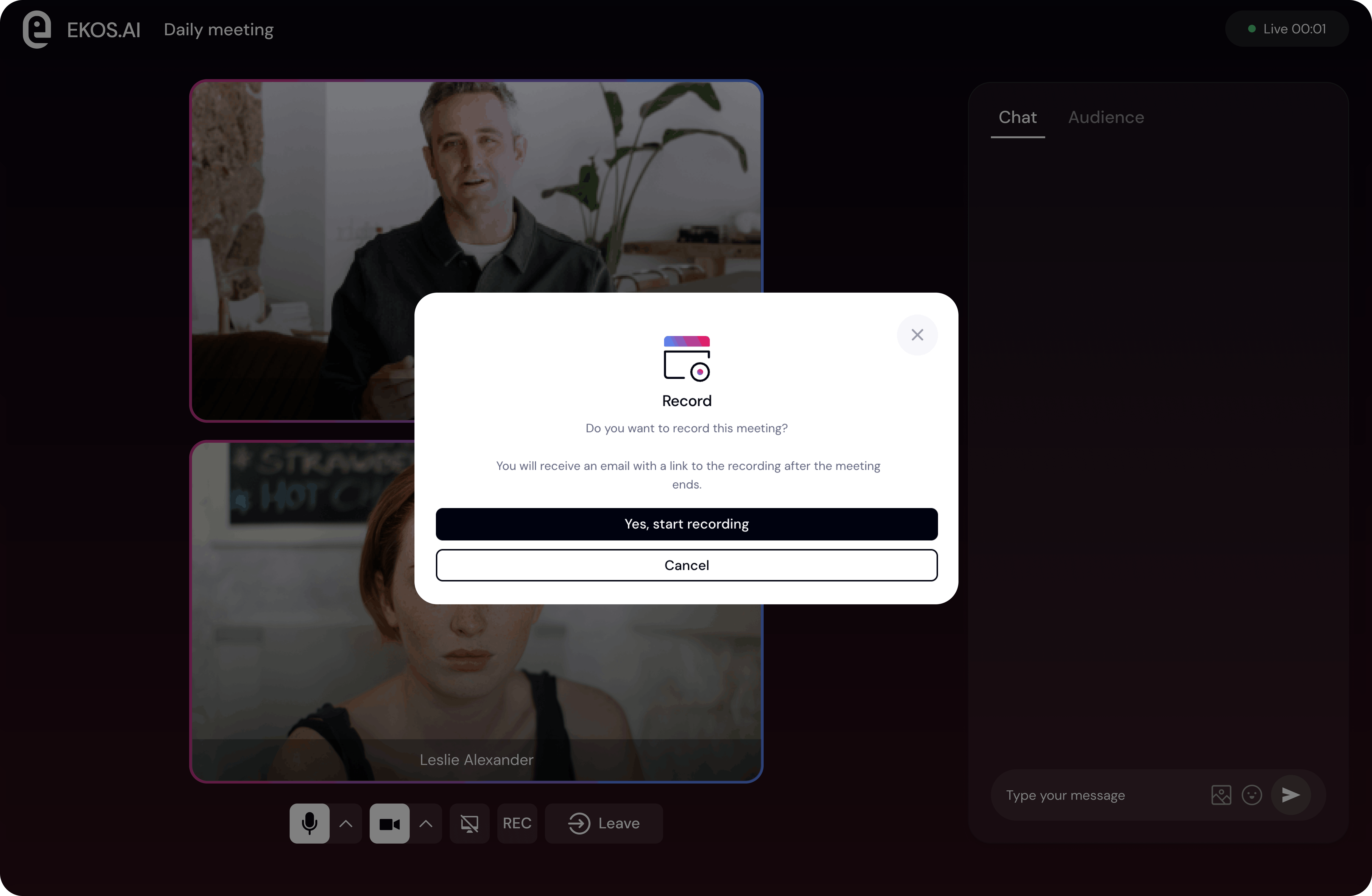
Recording Approval
When recording starts, participants are informed that the session will be recorded.
A notification appears indicating:
recording has been requested
participants have been informed
This ensures transparency for everyone attending the event.
Ending a Recording
Hosts can stop the recording at any time.
To stop recording
Click the REC button again.
A confirmation window will appear.
Click Yes, end recording.
Once recording stops:
the recording session ends
the system begins processing the recording
Participants will see a message confirming that the recording has ended.
After the Event
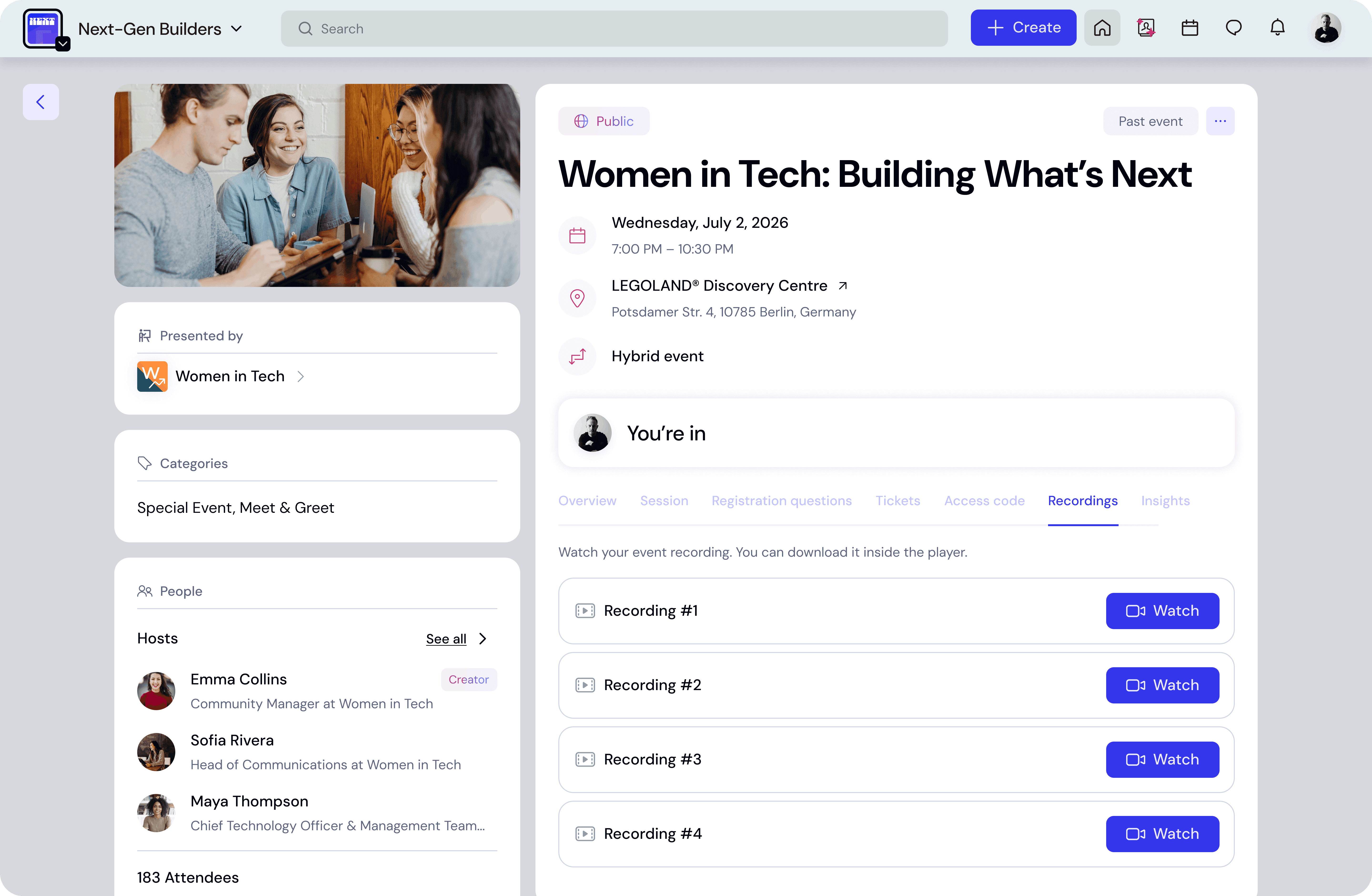
Once the event is completed, recordings become available on the event detail page.
Open the event and navigate to the Recordings tab.
There you can:
view available recordings
watch recordings directly
download recordings
Watching Recordings
To watch a recording:
Open the event page.
Go to the Recordings tab.
Click Watch next to the recording.
The recording will open in the video player.
Downloading Recordings
You can download recordings for offline viewing or sharing.
To download
Open the Recordings tab.
Click the Download icon next to the recording.
The video file will be saved to your device.
Multiple Recordings
Some events may contain multiple recording segments.
For example:
the host starts and stops recording multiple times
the event includes several sessions
In this case, each recording will appear as a separate item:
Recording #1
Recording #2
Recording #3
Each recording can be watched or downloaded independently.
Best Practices
Start recording before the session begins
This ensures that important introductions or announcements are captured.
Inform speakers in advance
Let speakers know the event will be recorded.
Stop recording during private discussions
If sensitive topics arise, you can pause or stop recording.