Event Sessions
Overview
Event sessions allow organizers to structure their event agenda into multiple segments such as talks, panels, networking blocks, or workshops.
Each session can include:
a session title and description
speakers
start time and duration
a session-specific location
Sessions help attendees understand the event flow and know what to expect during the event.
Adding a Session
You can add sessions from the Sessions tab on the event page.
To create a session
Open your event.
Go to the Sessions tab.
Click Add session slot.
A session setup window will open.
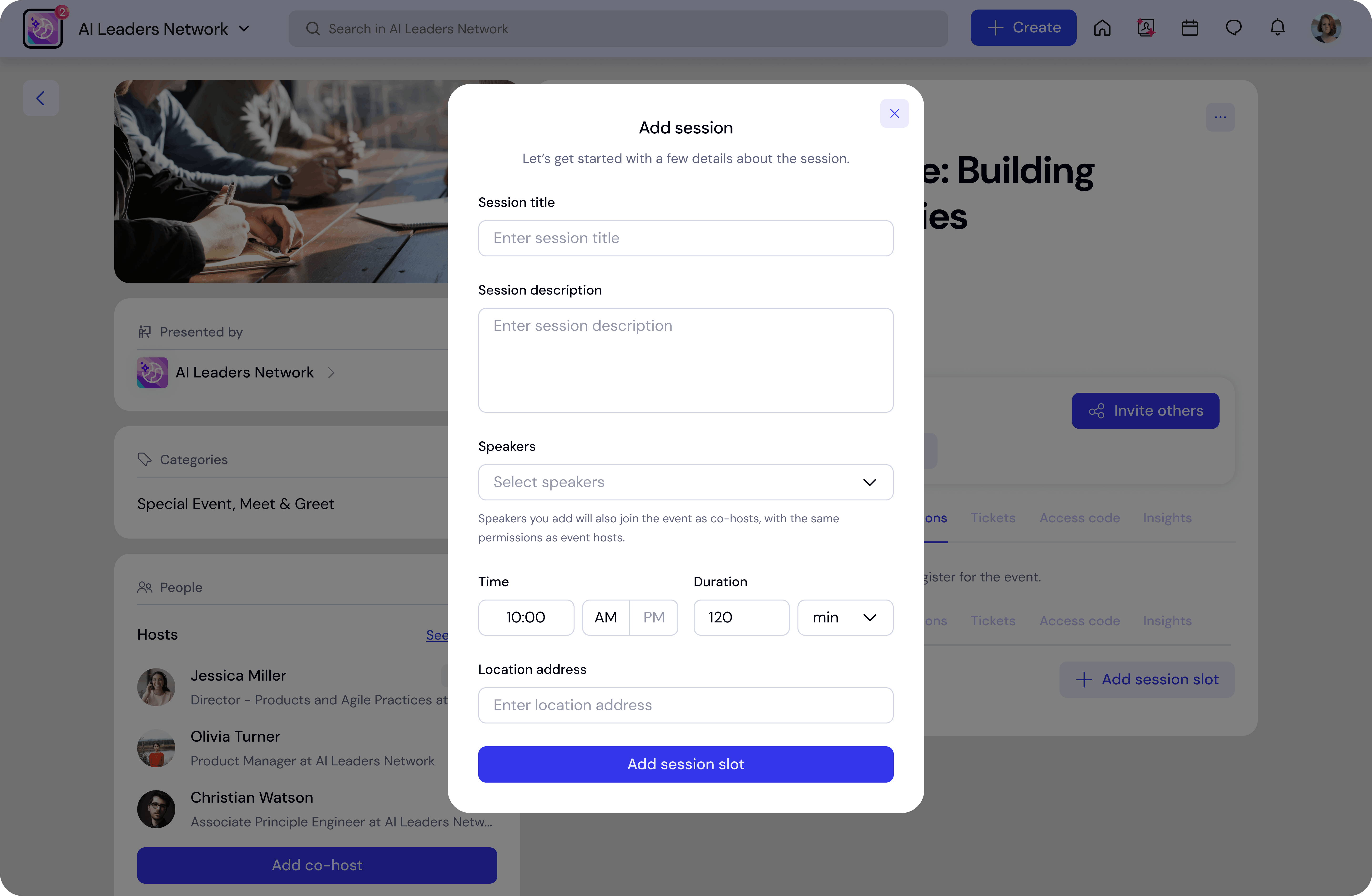
Session Information
When creating a session, you can define several details.
Session title
Enter the name of the session.
Example:
Welcome & Check-in
Keynote Talk
Networking Round
Workshop Session
Session description
Provide a short description explaining what the session includes.
This helps attendees understand the purpose of the session.
Speakers
You can add speakers from your community.
Speakers added to a session will automatically:
join the event as co-hosts
receive the same permissions as event hosts
If the speaker invitation has not yet been accepted, their status will appear as Pending.
Pending speakers will not appear publicly until they accept the invitation.
Session time
Define the session schedule:
Start time
Duration
Example:
6:30 PM – 7:00 PM
7:00 PM – 7:15 PM
Sessions will automatically appear in chronological order in the event agenda.
Session location (optional)
You can assign a session-specific location if the session happens in a different place than the main event.
This is useful for:
multi-room conferences
parallel sessions
breakout discussions
Editing a Session
You can update session details at any time.
To edit a session
Open the Sessions tab.
Click the edit icon on the session card.
Update the session details.
Click Save changes.
Changes are immediately reflected in the event agenda.
Deleting a Session
If a session is no longer needed, you can remove it.
Open the session editor.
Click Delete session.
The session will be removed from the event agenda.
Viewing Sessions (Attendee Experience)
Attendees can see the full event schedule inside the Sessions tab.
Each session card displays:
session title
session description
speakers
location (if available)
time range
Clicking a session opens a session details window where attendees can read the full description and speaker information.
Speaker Invitations
When speakers are added to a session:
they receive an invitation to participate in the event
they must accept the invitation to appear as confirmed speakers
If the invitation is not yet accepted, the speaker will appear as Pending in the host view.
Pending speakers are not visible in the public event schedule.
Viewing Speakers
Attendees can view session speakers.
From the speaker list they can:
Connect with the speaker
Send a message
This helps attendees build connections directly from the event agenda.
Best Practices
Break the event into clear segments
Instead of one long event block, structure your agenda into meaningful sessions.
Use clear session titles
Titles should quickly communicate what the session is about.
Keep descriptions short
Provide just enough information to help attendees decide which sessions interest them.
Assign speakers early
Adding speakers to sessions helps attendees understand the value of each session.