Registration Questions
Overview
Registration questions allow event hosts to collect additional information from attendees during event registration.
You can ask custom questions such as:
company name
LinkedIn profile
professional expertise
expectations for the event
Responses help organizers:
understand their audience
review registration requests
personalize networking opportunities
prepare better event experiences
Attendees answer these questions when they register for the event.
Adding Registration Questions
You can add custom questions while creating an event or later from the event settings.
During Event Creation
Open Create event.
Scroll to Registration questions.
Click Add question.
A setup window will open where you can define the question type.
Question Types
Two types of questions are supported.
Text
Allows attendees to submit a free-form response.
Example:
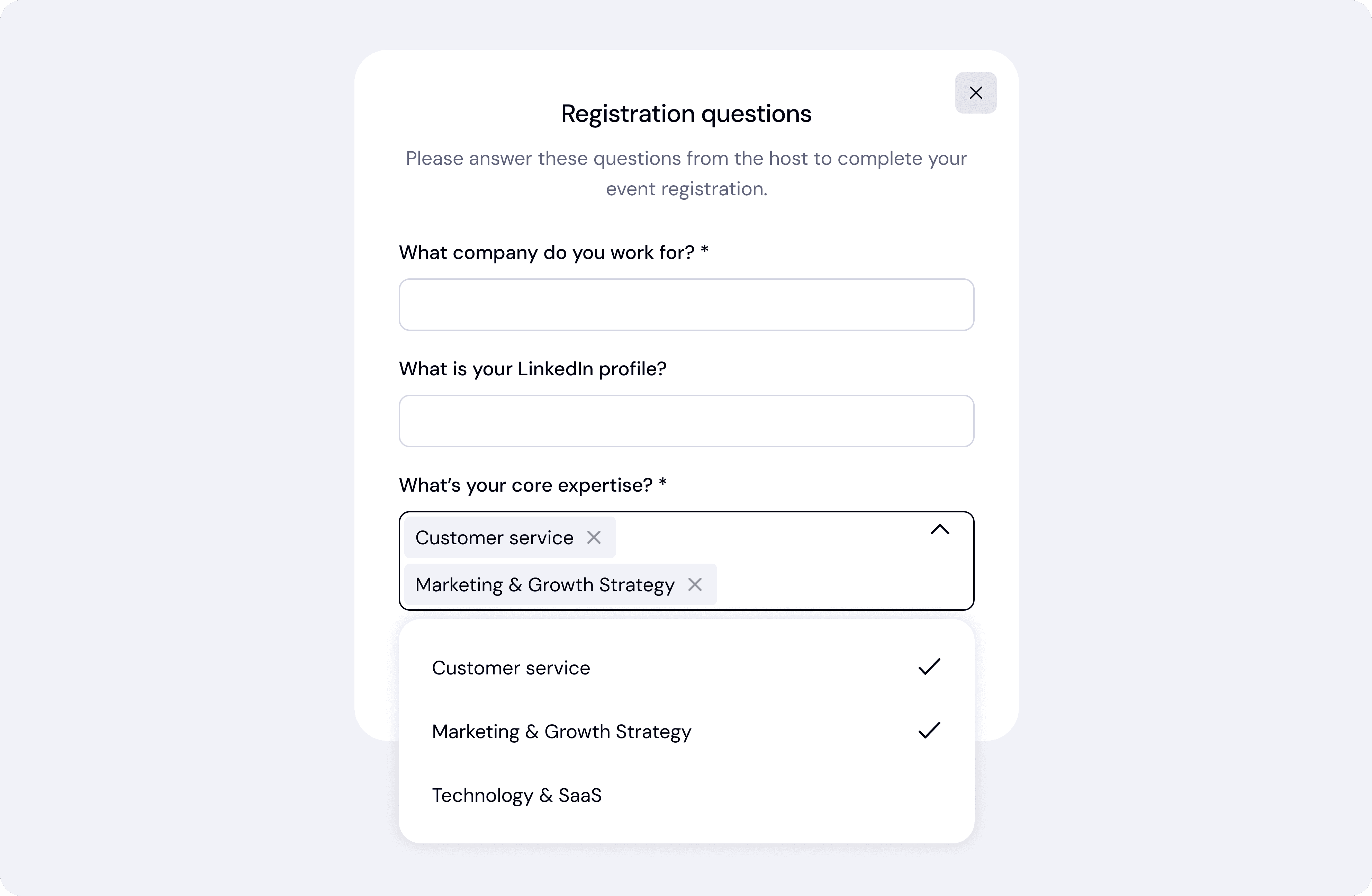
What company do you work for?
You can enable Required if the question must be answered before registration is submitted.
Options
Allows attendees to choose from predefined answers.
Example:
What’s your core expertise?
Add options by pressing Enter or Tab.
You can configure the selection type:
Single
Attendees can choose only one option.
Multiple
Attendees can select multiple options.
You can also mark the question as Required.
Editing Questions
You can update questions after creating the event.
Open the event page.
Go to the Registration questions tab.
Click the edit icon next to the question.
Modify the question, options, or settings.
Click Save changes.
Updates apply to future registrations.

Deleting Questions
If a question is no longer needed, you can remove it.
Open the Registration questions tab.
Click the edit icon on the question.
Select Delete question.
A confirmation window will appear.
Click Yes, delete to permanently remove the question.
⚠️ This action cannot be undone.
You can also remove the entire form using Delete form, which deletes all registration questions for the event.
Answering Registration Questions (Attendee Experience)
When attendees register for an event:
They click Register.
The Registration questions form appears.
They answer the required questions.
They submit their registration.
Only after completing required questions can the registration be submitted.
Viewing Attendee Responses
Hosts can review attendee responses directly from the event.
Open the event page.
Go to Recent registrations or Attendees.
Click Responses next to a participant.
A panel will display:
attendee profile information
their answers to registration questions
This is especially useful when reviewing registration requests.
Downloading Responses
Hosts can export registration data.
Open Registration questions.
Click Download responses.
This allows organizers to analyze attendee data externally.
Best Practices
Keep questions concise
Short forms increase registration completion rates.
Use options for structured insights
Multiple choice questions make responses easier to analyze.
Ask only essential questions
Only mark questions as Required when necessary.