Managing Event Attendees
Overview
After publishing an event, you can manage attendees directly from the event page.
EKOS allows you to control:
who can register
how attendees join the event
whether approval is required
who can see the attendee list
how attendees interact with the event
These tools help you manage both small private sessions and large public events efficiently.
Viewing Event Attendees
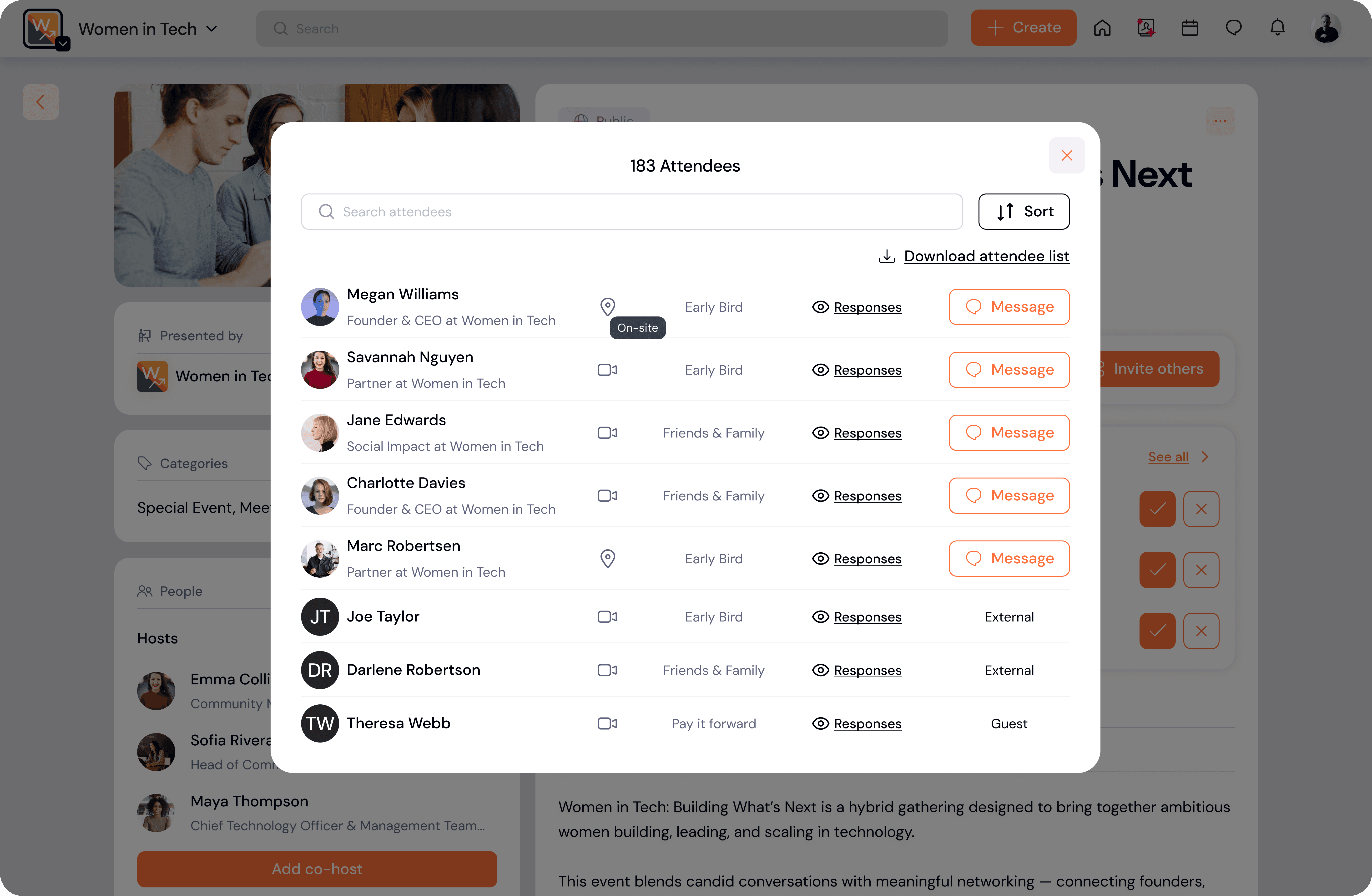
Once participants register for your event, they will appear in the Attendees list on the event page.
From this list you can:
view all registered participants
monitor event capacity
approve attendees (if approval is enabled)
Hosts and admins have full visibility over the attendee list.
Approving Attendees
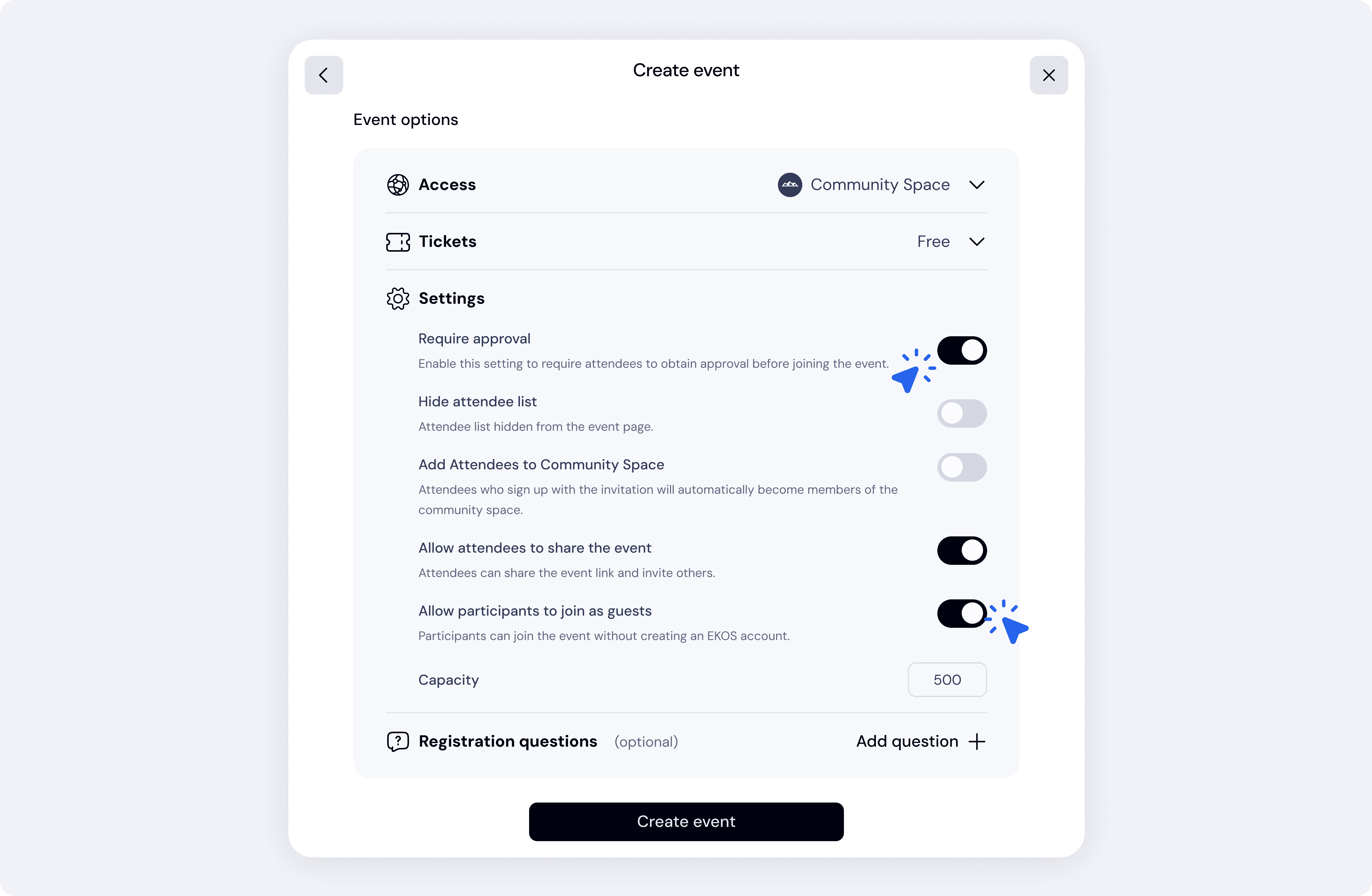
If Require approval is enabled in the event settings, attendees must be approved before they can join the event.
When someone registers:
Their request appears in the pending attendees list.
The event host or admin reviews the request.
You can approve or decline the participant.
This feature is useful for:
curated events
invite-based sessions
workshops with limited seats
Managing Event Capacity
You can control the maximum number of participants using the Capacity setting.
If capacity is set:
registration automatically closes once the limit is reached.
If capacity is unlimited, anyone can continue registering.
Capacity management is especially useful for:
workshops
in-person events
limited training sessions
Guest Participants
You can allow people to join events without creating an EKOS account.
When Allow participants to join as guests is enabled:
attendees can register using the event link
they do not need to create a community profile
This makes it easier to invite:
external guests
speakers
partners
event participants from outside your community
Converting Attendees into Community Members
If Add Attendees to Community Space is enabled:
People who register for the event through an invitation will automatically become members of the community space.
This helps you:
grow your community through events
turn event participants into long-term members
expand your network organically
This setting is especially useful for public or growth-focused events.
Sharing the Event
If Allow attendees to share the event is enabled:
Participants can share the event link and invite others.
This helps increase event visibility and allows attendees to bring friends or colleagues.
Sharing works well for:
public webinars
networking events
community meetups
Hiding the Attendee List
You can hide the attendee list from the event page using the Hide attendee list setting.
When enabled:
attendees cannot see who else registered for the event.
This may be useful for:
private events
sensitive topics
invite-only gatherings
Hosts and admins can still see the attendee list.
Best Practices
Use approvals for curated events
If the event requires specific participants, enable Require approval.
Enable guest access for public events
Allowing guest registration lowers the barrier for new participants.
Convert attendees into members
Enable Add attendees to community space if your goal is community growth.
Set a capacity for in-person events
Capacity helps prevent overcrowding and keeps the event organized.